

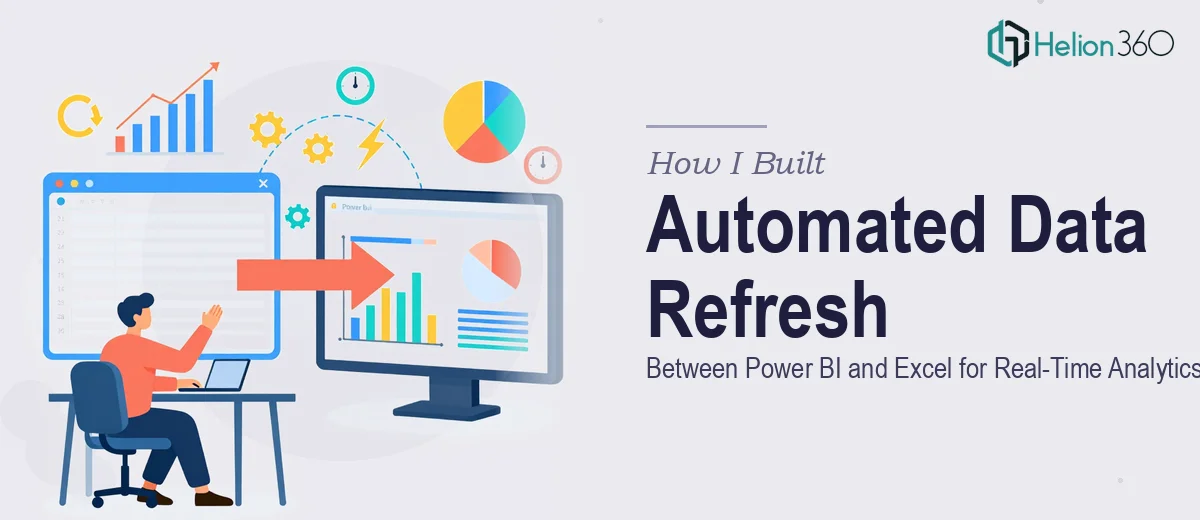
When a Simple Dashboard Became a Data Integration Problem
I was working on a reporting setup for a startup where every major decision ran through data. The plan seemed straightforward: pull numbers from our Excel files into Power BI, build a few clean visuals, and let the team use the dashboard daily. What I did not expect was how quickly that "simple" setup turned into a multi-layered data integration challenge.
The Excel files were structured well enough, but they lived in a shared drive and updated frequently. Every time a refresh was needed, something either broke or fell out of sync. I was spending more time troubleshooting the connection than actually analyzing anything useful.
What I Tried on My Own
I started by connecting Power BI directly to the Excel dataset using the standard Get Data workflow. It worked the first time, but after the file path changed once and the schema shifted slightly, the entire data model collapsed. I tried re-mapping columns, adjusting the connection settings, and even restructuring the Excel file to make it more stable — none of it held up reliably across refreshes.
The bigger issue was automation. Manually triggering a refresh every morning was not a long-term fix. The startup needed real-time or near-real-time data flowing into the Power BI dashboard without anyone touching it. I explored Power BI's scheduled refresh options through the Power BI Service, but that required the data to be published through a gateway, and setting up the on-premises data gateway for a locally stored Excel file added another layer of complexity I had not fully accounted for.
I also tried using Power Query to clean and reshape the data before it reached the model — which helped with some of the column inconsistencies — but the underlying refresh reliability problem persisted.
Bringing in the Right Expertise
After about a week of patchy progress, I realized this was not just a configuration issue. The architecture of how the Excel data was being maintained, published, and consumed by Power BI needed to be thought through properly. That is when I reached out to Helion360. I explained the setup — the Excel files, the connection issues, the refresh failures, and the end goal of having a live dashboard the team could rely on.
Their team took over the technical implementation from there. They mapped out the full data flow, identified where the instability was coming from, and restructured the connection so it would hold even when the Excel file updated. They configured the data gateway correctly, set up a reliable scheduled refresh cycle, and used Power Query transformations to make the model resilient to minor schema changes in the source file.
What the Final Setup Looked Like
The result was a Power BI dashboard connected directly to the live Excel dataset, refreshing automatically on a defined schedule without any manual intervention. When the Excel file updated, the dashboard reflected the changes within the next refresh window. Filters, slicers, and all the visuals stayed intact across refreshes — which had been a recurring pain point before.
The team at Helion360 also documented the setup clearly, so anyone maintaining the Excel file would know which columns and sheet names the model depended on. That alone saved a significant amount of future troubleshooting.
What This Experience Taught Me
Connecting Power BI to an Excel dataset sounds simple in theory, but automating that data refresh reliably — especially in a live business environment — involves more moving parts than most tutorials cover. Gateway configuration, Power Query logic, scheduled refresh settings, and source file governance all have to work together.
For a startup where data accuracy drives decisions, getting this wrong even occasionally is costly. Having the integration set up properly from the start made the entire analytics workflow faster and more trustworthy.
If you are dealing with Power BI and Excel data refresh issues and the standard troubleshooting steps are not sticking, consider how automated data workflows can resolve underlying architecture problems — Helion360 handled the technical depth of this project precisely and delivered something that actually works in production.